How to reduce lag while recording League of Legends
Recording always uses some system resources, but hardware encoding, game-window capture and sensible video settings can reduce the impact. Use this checklist, then test a short match on your own PC.
1. Why recording usually lags
Most FPS drops from recording come from software (CPU) encoding — the recorder pulls each frame back off the GPU and asks your processor to compress it, while your CPU is already busy running the game. Recording the whole desktop instead of just the game makes it worse. The result: stutters, exactly when the fight gets busy.
2. How RiftRec stays smooth
RiftRec avoids both problems:
- Hardware encoding — the video is compressed on your GPU's dedicated encoder (AMD AMF, NVIDIA NVENC or Intel QSV), not your CPU.
- GPU-direct capture — supported AMD and NVIDIA paths can keep capture and encoding work on the GPU.
- Game-only recording — it captures just the League window, not your whole screen, so there's less to process.
3. Settings that matter
The defaults are already tuned for smooth recording. If you want to double-check (see the best recording settings guide for detail):
- Encoder: Auto — keeps you on hardware encoding.
- FPS: 60 — plenty for review and light on your system.
- Resolution: match your monitor — recording higher than your screen wastes GPU for no benefit.
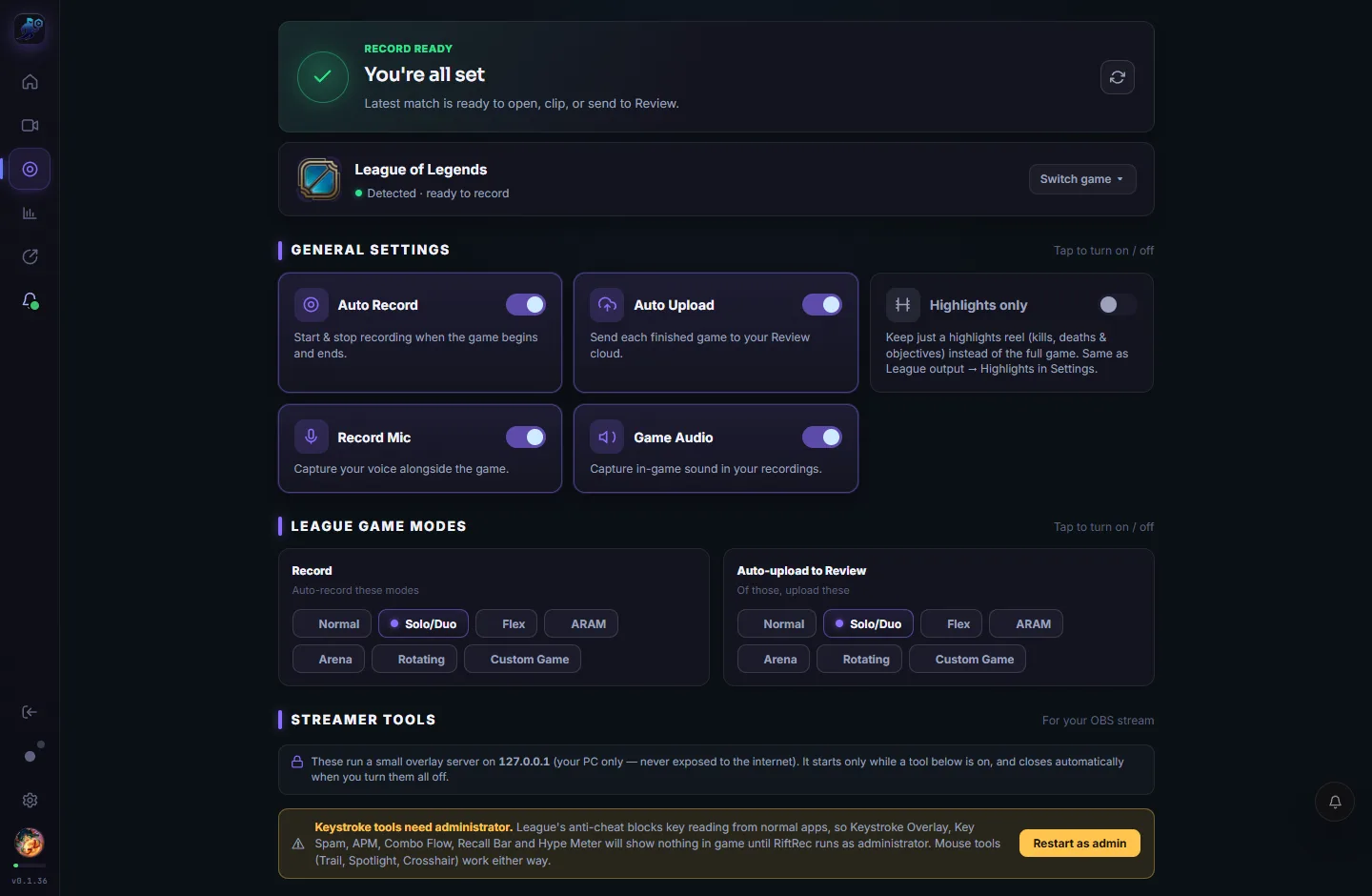
4. Recording while streaming
5. Still seeing lag? Quick checklist
- Confirm the encoder is on Auto (hardware), not a software/CPU encoder.
- Close other apps using the GPU encoder — Streamlabs, Medal, browser hardware acceleration.
- Drop FPS to 60 and set resolution to match your monitor.
- Update your GPU drivers — encoder performance improves with newer drivers.
- Still stuck? Tell us your GPU/CPU and we'll help troubleshoot the setup.
Configure recording for your PC
Free for Windows — hardware encoding is available on supported GPUs.
Download RiftRec free