How to record League of Legends games on Windows
To record League of Legends on Windows with RiftRec, install the app, leave auto-record enabled, choose the queues you want captured and play. Supported matches are saved as local MP4 files in the Videos tab when processing finishes.
1. Install RiftRec
Download RiftRec for Windows 10 or 11 and run the installer — it takes a few seconds. You don't need an account to record locally; your VODs are standard H.264 MP4 files saved on your own PC.
2. Auto-record is already on
Auto Record is enabled by default, so RiftRec can start and stop with supported League matches in the queues you enable. You can confirm it (or toggle it off) any time in the Games tab.
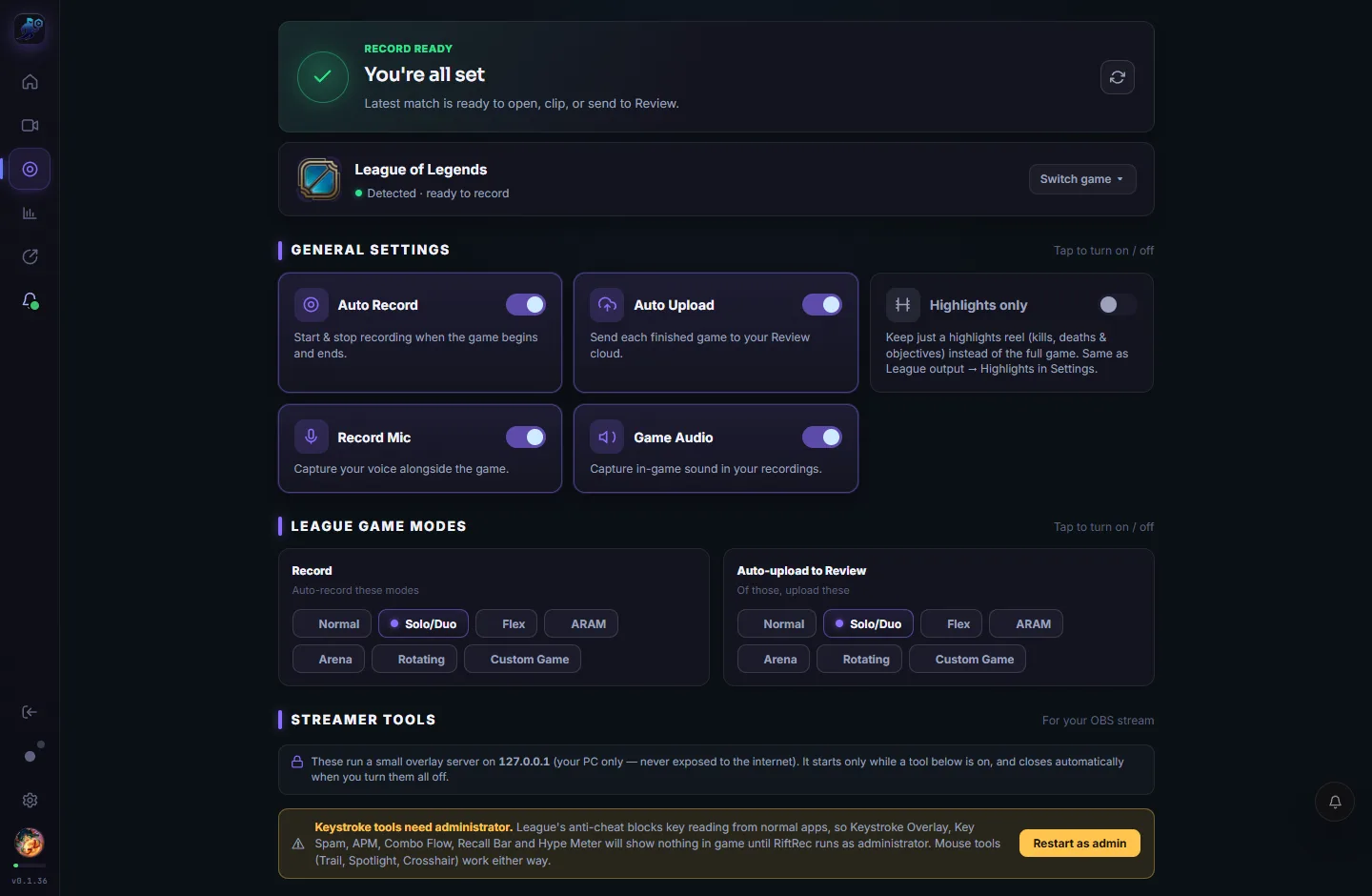
3. Pick your queues & options
Under League game modes, choose which queues to record — Ranked Solo, Flex, Normals or ARAM. A few options worth knowing:
- Highlights only — record the full game, then keep just a highlights reel (kills, deaths, objectives).
- Record Mic — mix your voice into the recording, handy for reviewing your own calls.
- Auto-upload — send finished games straight to a Review room to watch with a coach.
4. Play — it records itself
Just queue up and play. When a supported game loads, RiftRec can capture game-only video with a compatible AMD, NVIDIA or Intel hardware encoder. Performance depends on the PC and selected settings. It stops and saves automatically when the game ends.
5. Find & review your VOD
Every recording lands in the Videos tab as a win/loss card with your KDA, items and enemy laner attached — ready to replay, clip, or upload to a Review room.

From here, open a game to replay it with your stats, or read how to review a League VOD for a repeatable routine that actually turns replays into rank.
FAQ
- Will it lag my game? Performance depends on your PC, capture settings and other running applications. Test a short recording and compare it with recording disabled.
- Does RiftRec modify League? No. It records your selected source and can read local client data for post-match context. Optional click tracking requests administrator access.
- Where are recordings saved? Locally, as MP4 files you fully control. You can change the folder in Settings.
- Is there a time limit or watermark? No — local recording is free, unlimited and watermark-free.
Compare the recorder features and storage model on the LoL recorder page.